


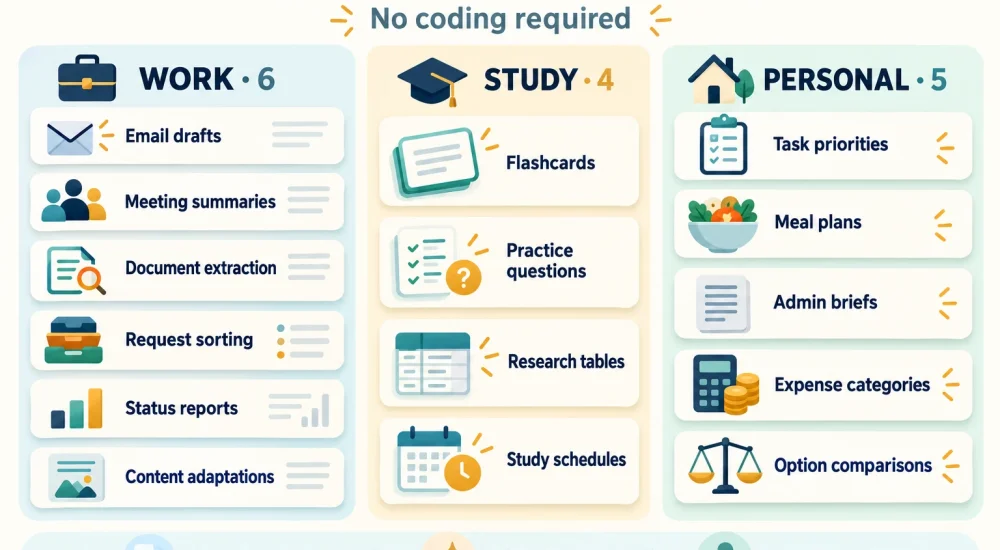
The best AI tasks to automate are the ones you repeat every week: email replies, meeting summaries, data pulled from documents, study aids, and weekly plans. Start with a saved prompt and your own approved inputs. Connect apps only once the prompt works every time.
Below are 15 tasks with a ready-to-use prompt and a hypothetical example for each, plus a step-by-step guide to your first connected workflow.
What AI Automation Means for Beginners
AI automation handles one repeatable step for you. A trigger starts the workflow, and an action produces or saves the result. For example: form submitted → AI writes a reply → reply saved as an email draft → you review and send.
There are three levels. Pasting notes into a chatbot is AI-assisted work. A saved prompt makes it reusable. A no-code connector makes it run on its own when a form arrives, a file is added, or a set time is reached. If you’re new to these tools, our guide to what generative AI is covers the basics.
Picking the right tasks matters. A 2025 study in The Quarterly Journal of Economics of 5,172 customer-support agents found an AI assistant raised issues resolved per hour by 15% on average, with the biggest gains for less experienced agents. Agents could edit or ignore its suggestions. That result covers support work at one company; it doesn’t promise the same gain for every task below.
Choose a Tool That Fits Your Workflow
Start where your information already lives.
|
What You Need |
Tool |
What to Check |
|
Occasional drafts or summaries |
Any AI chatbot with a saved prompt |
Which files it accepts and what data you may share |
|
Help inside documents |
Gemini in Google Docs |
Needs an eligible Google Workspace or Google AI plan |
|
Steps that run across apps |
Zapier with an AI step |
AI steps need a paid plan; check task limits |
Gemini in Google Docs can write, edit, and summarize inside your documents. AI by Zapier lets you write a prompt, define output fields, and preview the result before it runs. On Zapier’s pricing page, the free plan includes 100 tasks a month but not AI by Zapier; that starts on the Professional plan at $19.99 a month, billed annually (checked October 26, 2026).
AI Tasks to Automate at Work
Use tools your employer allows, and share only material you’re permitted to share. Save every output as a draft and keep the original input for checking.
1. Draft Replies to Routine Emails
Example: A workshop inquiry asks about dates, location, and booking. Instead of retyping the same answer, you get a draft built from your approved details, with gaps flagged.
Draft a friendly reply under 120 words to this inquiry. Use only the approved information below. Do not invent availability, prices, or booking links. List unanswered questions separately. Inquiry: [message]. Approved information: [details].
To automate: connect a form or filtered inbox to an AI step, then to an email-draft action. You still press send, especially when a reply makes a commitment. Zapier shows ready-made workflows that create reply drafts for review.
2. Turn Meeting Notes Into Action Items
Example: “Sam—slides Thurs; launch? waiting on budget; ask Jo about figures” becomes: Sam owns the slides, the launch date is open, and budget approval is a blocker. “Thursday” still needs a real date.
Turn these notes into a short summary, confirmed decisions, and an action table with task, owner, and deadline. Mark missing owners or dates as “not specified.” Keep proposals separate from decisions. Notes: [text].
Check: have each person confirm their tasks. Talking about a task isn’t agreeing to do it. If you record meetings, follow your consent rules.
3. Pull Fields From Routine Documents
Example: Instead of opening each supplier quote, you get a table of reference, date, total, and expiry for all of them, with missing values flagged.
Extract supplier, quote reference, issue date, currency, subtotal, tax, total, and valid-until date. Include the source page for each row where available. Write “not found” for missing values. Do not calculate or infer missing amounts.
To automate: trigger the workflow when a file lands in a set folder, and add the fields to a review sheet. Check every amount against the original, especially on scans. Extraction should never approve a payment.
4. Sort Incoming Requests by Topic
Example: A shared inbox mixing billing, login, and course questions gets a suggested label and reason for each message, with unclear ones held back.
Classify each message as Billing, Access, Course Information, or Needs Review. Return its message ID, category, and one supporting phrase. Use Needs Review when the message is unclear or contains several unrelated requests.
To automate: write labels to a review table first. Once they’re reliable, route each label to the right queue. Keep complaints and urgent issues in front of a person.
5. Build Weekly Status Reports
Example: Instead of rereading task updates every Friday, you get a draft grouped into done, next, blockers, and decisions needed.
Create a weekly status report using only these updates. Group items under Completed, Next Week, Blockers, and Decisions Needed. Keep task IDs. Flag conflicting statuses and missing information. Do not mark work complete unless the source confirms it.
To automate: schedule the workflow to gather updates each week. Use spreadsheet formulas for totals; let AI explain numbers, not calculate them.
6. Turn Approved Content Into Shorter Formats
Example: One approved article becomes a newsletter intro and a social post, ready to edit.
Adapt this approved article into a 100-word newsletter introduction and a 150-word professional social post. Keep qualifications and attribution. Add no new statistics, promises, or quotes. Article: [text].
To automate: trigger it when an article is marked approved, and save the results as drafts so nothing unfinished gets published.
AI Tasks to Automate for Study and Learning
These tasks help you revise and organize sources. Follow your school’s rules for graded work.
7. Convert Notes Into Flashcards
Example: A page of biology notes becomes a set of cards, one concept per card.
Create 12 flashcards from these notes. Ask one clear question per card. Use only the supplied material, include a short answer, and name the supporting heading. Skip claims the notes don’t explain.
Tool option: Gemini Notebook can generate flashcards and quizzes from sources you upload. Check the cards before you study them so errors don’t stick.
8. Generate Practice Questions
Example: Instead of rereading a chapter, you get questions to answer first and a separate answer key to check against.
Based only on this chapter, create five recall questions and three application questions. Put the answer key in a separate section with source headings. Say when more than one answer could be reasonable.
Check: try the questions before reading the answers, and settle disputed answers with your course materials.
9. Organize Research Into an Evidence Table
Example: Notes scattered across several papers become one table showing what each source studied and what it found.
Build a table from these sources: title, research question, method, main finding, limitation, and page reference. Mark missing details as missing. Do not add sources or complete citations from memory.
Check: open each cited passage yourself. A generated page number is a lead, not proof.
10. Build a Study Schedule
Example: Six topics and a busy week become a plan that fits sessions into your free time, with a buffer for overruns.
Create a seven-day study plan using these topics, deadlines, and available sessions. Include practice and review. Keep each session within my time limit, leave one buffer session, and flag work that won’t fit. Inputs: [details].
Check: compare the plan with how long similar work has actually taken you.
AI Tasks to Automate in Your Personal Life
Remove names and account details where you can, and include the deadlines and limits that matter.
11. Prioritize a Mixed Task List
Example: “Renew membership, finish slides, book repair, reply to Alex” becomes an order that separates deadlines, blocked tasks, and things that can wait.
Order these tasks using only the deadlines, dependencies, importance, and effort I provide. Explain the top three choices briefly. Flag missing information instead of inventing urgency. Time available today: [time]. Tasks: [list].
To automate: have a workflow draft a daily priority list from your task app. Review any change to due dates yourself.
12. Plan Meals and Build One Shopping List
Example: Four dinners become one shopping list that combines repeated ingredients and skips what’s already in the cupboard.
Suggest four dinners for two adults using these preferences and pantry items. Maximum cooking time: 30 minutes. Combine ingredients into one shopping list with clear units. Preferences and restrictions: [details]. Pantry: [items].
Check: read product labels yourself for allergies. AI isn’t a reliable allergy check.
13. Prepare a Weekly Admin Brief
Example: Renewal dates, appointments, and chores scattered across notes become one list of what’s due, what to do, and what’s missing.
Turn this admin list into Upcoming Dates, Actions This Week, and Information Missing. Keep dates exactly as written. Do not guess renewal terms, payment amounts, or cancellation deadlines. List: [details].
To automate: schedule a weekly brief from one dedicated list. Keep payments, cancellations, and bookings out of the automatic step.
14. Categorize Expenses
Example: Cryptic merchant names in a spending sheet get labels you defined, with unclear rows set aside.
Categorize these transaction descriptions as Groceries, Transport, Utilities, Entertainment, or Needs Review. Keep row IDs and amounts exactly. Give a short reason for uncertain labels. Do not infer tax treatment.
Check: never paste account numbers or logins. Write labels in a new column so the original data stays intact, and use formulas for totals.
15. Compare Options Side by Side
Example: Three courses, products, or venues described in different formats become one table judged on the same criteria.
Compare these three options using my criteria: total cost, essential features, restrictions, and cancellation terms. Use only the supplied information. Mark missing details and separate facts from your suggested best fit. Criteria and sources: [details].
Check: confirm current prices and terms on the seller’s site before you buy.
Connect Your First No-Code AI Workflow
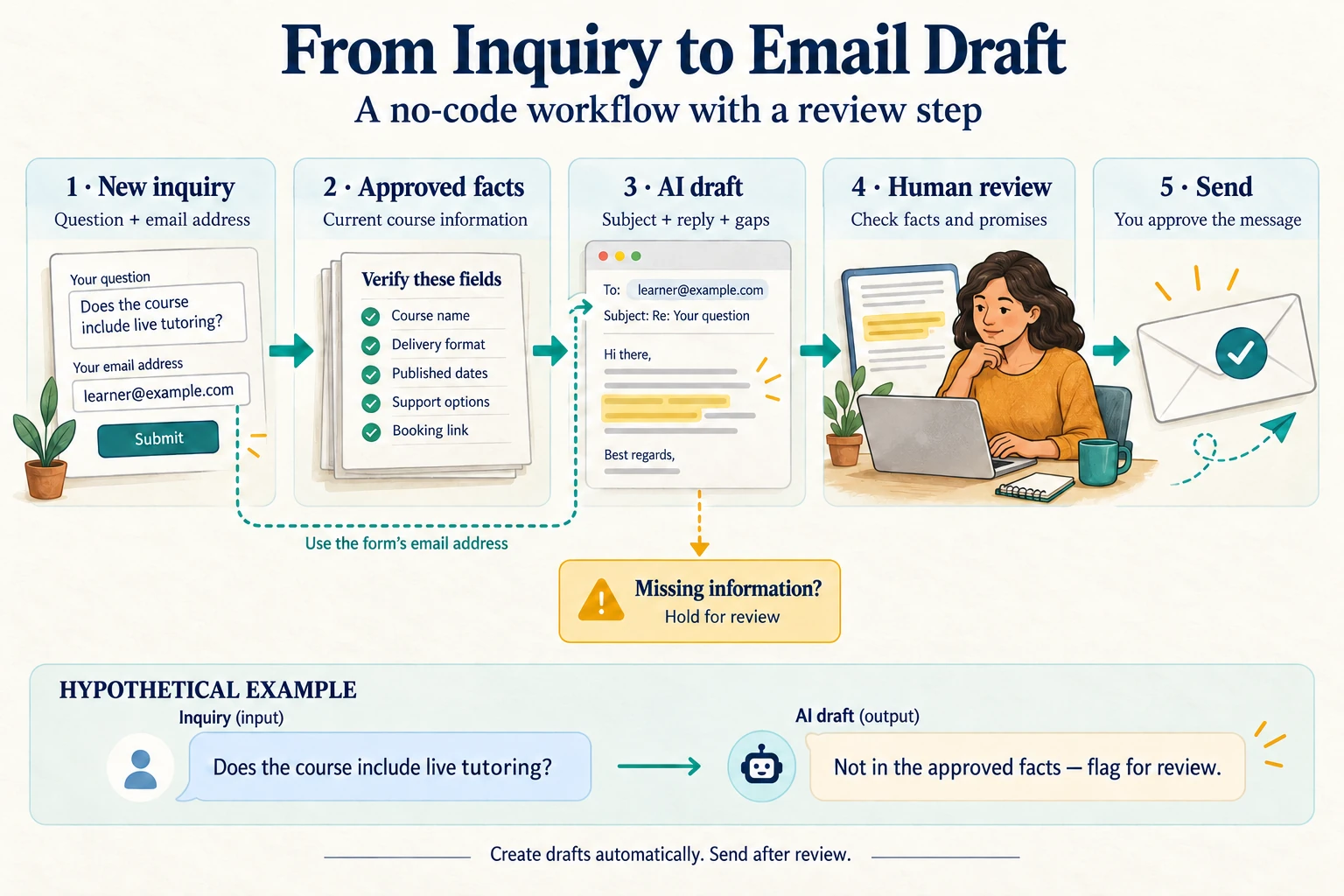
This setup turns a course inquiry into an email draft using a form trigger, an AI step, and a Gmail draft action. Test the prompt by hand first.
Prepare the input. Build a form with name, email, course interest, and question. Create a fact sheet with only current course details you can share.
Choose the trigger. Pick the form app’s “new submission” event and test it with a fake inquiry.
Add the AI step. Send the question and fact sheet to the prompt from task 1. Ask for three separate outputs: subject, body, and unanswered questions.
Map the outputs. Send the form’s email field straight to the draft’s recipient, and the AI subject and body to the matching fields. Never let AI guess the recipient.
Add an exception path. If the AI flags unanswered questions, route the draft to a review queue.
Test before you turn it on. Try a normal question, a missing detail, a complaint, and a discount request. Confirm it only creates drafts and makes no promises you can’t keep.
After launch, check draft quality and failed runs, and pause the workflow whenever course details change.
What Still Needs Human Review
Check these before you use any output:
|
Output |
Check Before Use |
|
Email or customer reply |
Recipient, facts, tone, promises, and confidential details |
|
Meeting summary or plan |
Decisions, owners, dates, and missing context |
|
Extracted document or expense data |
Original values, currency, categories, and source |
|
Research or study material |
Source passages, answer accuracy, and academic rules |
|
Purchase or financial comparison |
Current terms, full costs, and consequences |
Keep medical, legal, financial, and hiring decisions with qualified people.
Your First Week: A Five-Example Test
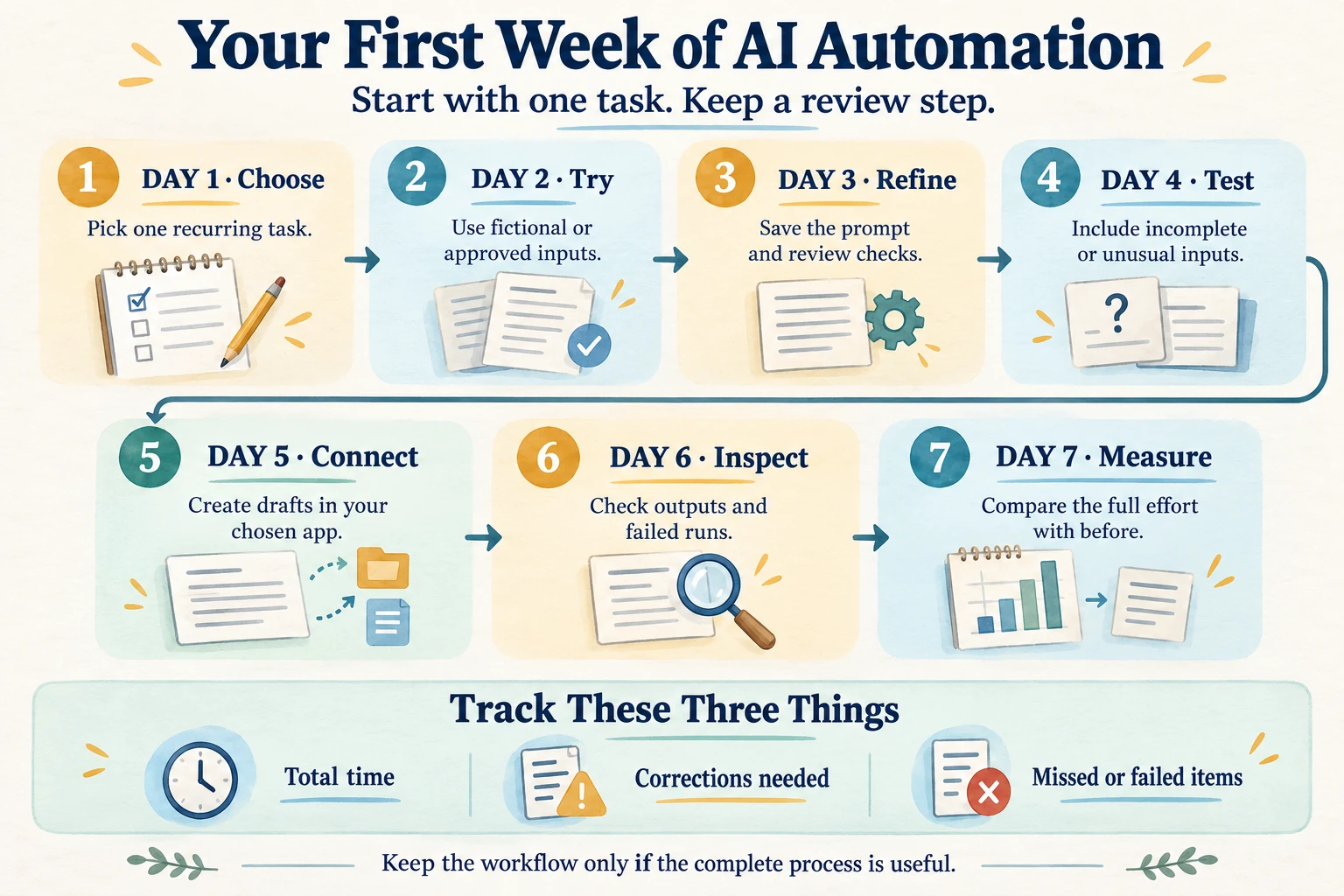
Start with email drafts or meeting summaries as your first AI tasks to automate. Fill in this brief and use the matching prompt above:
Task: [one recurring task] / Input: [approved message, notes, or file] / Output: [exact format and destination] / Rules: [facts to keep; information never to invent] / Review: [who checks and what] / If information is missing: flag it and hold for review.
Run five real examples, including one with missing information, and log the results:
|
Example |
Manual Time |
AI Run + Review Time |
Corrections or Failures |
|
1 |
|||
|
2 |
|||
|
3 |
|||
|
4 |
|||
|
5 |
Net time saved = manual time − (AI run time + review time). Track setup time separately. For example, if you save 20 minutes a week and setup took 40 minutes, you break even after two weeks. That’s an illustration, not a forecast.
Fix any invented facts, wrong recipients, or unwanted actions before you connect the workflow, and keep the review step after it passes. For a sharper prompt, see our guide to prompt engineering. For more workplace ideas, read practical AI use cases for professionals. If you want guided practice with email and meeting workflows, review the Fusion Foundations curriculum to see if its exercises fit your work.